How to Speed Up a Slow Laptop: Find the Real Cause First
Diagnose why your laptop is slow, then fix the real bottleneck: startup apps, storage, RAM, heat or malware. Free fixes first, upgrades only when needed.

Your laptop used to be fast, and now you watch a spinning cursor while a single browser tab loads, mentally pricing a replacement before you have even finished waiting. Before you spend a dollar on that, know this: most slow laptops are slow for a short list of common reasons, and a surprising number of those reasons cost nothing to fix. Learning how to speed up a slow laptop is less a shopping problem than a diagnosis problem wearing a shopping problem’s clothes.
Laptops that “just got slow” tend to follow a pattern you can actually trace, which means the fix is rarely a magic cleaner app or a registry tweak someone posted in a forum years ago. It is figuring out which resource is genuinely bottlenecked, then treating that specific thing instead of everything at once. Guessing wastes an afternoon; measuring takes five minutes.
This guide works symptom-first: name what is actually happening, diagnose the real cause behind it, apply the fix that matches, and figure out when replacing the hardware beats one more round of tinkering.
How to Speed Up a Slow Laptop: Start With the Symptom, Not the Fix
A slow laptop is not one problem, it is a category, and the remedy for one cause can do nothing, or even cause harm, for another. Here is what most guides skip entirely: the type of slowness tells you exactly where to look, if you are willing to notice it. Boot takes four minutes but everything runs fine once you are in? That is a startup problem. Everything crawls all the time, no matter what you open? That points toward storage, memory, or heat. Only websites lag while local files feel completely normal? Your laptop is probably fine, and your network is not.
So before you disable a single thing or delete a single file, spend two minutes matching your situation to one of these patterns.
Slow startup, then normal performance. Too many programs launching with Windows, plus pending updates quietly finishing themselves in the background.
Sluggish all the time, even with almost nothing open. Storage health, not enough RAM, or thermal throttling.
Freezes and stutters when you multitask. Memory pressure, where the system is swapping data to the drive because physical RAM has run out.
Slow only inside the browser. Extensions, too many open tabs, or a browser profile that has accumulated years of junk.
Slow only on video calls, cloud apps, or streaming. A network problem, not a laptop problem.
Gets slower the longer it runs. Heat building up, or a memory leak inside one specific app.
Write down which one matches you, because that single step eliminates roughly half the advice you would otherwise waste time chasing.
Why Is My Laptop Suddenly So Slow?
Gradual slowdown over months is normal, since files pile up, updates accumulate, and the startup list grows a little every year without anyone noticing. Sudden slowdown is a different animal, and it almost always has a specific trigger you can name if you think back far enough. Did you install new software? Did a major Windows update land recently? Has the fan been running constantly? Did the laptop take a drop or a knock?
A sudden drop in speed, paired with unusual drive noises, frequent crashes, or files that will not open, points toward failing storage, and that stops being a performance problem the moment you notice it. It becomes a data-loss emergency, which means you back up your files immediately, before trying any optimization step at all. If there is no obvious trigger and no hardware warning sign, run a malware scan, because malicious background processes, including cryptominers, consume CPU and disk without ever showing a visible window. Microsoft’s own troubleshooting guidance treats a Windows Security scan as a standard step the moment performance drops without explanation.
Will Adding More RAM Make My Laptop Faster?
Sometimes, and the “sometimes” matters a great deal, because RAM upgrades cost real money and often require opening the machine to find out whether they will even help. RAM helps when memory is the actual bottleneck, and the signal worth watching is not how much free RAM you have sitting around. It is whether the system is swapping. Once physical memory fills up, the operating system starts moving data to the drive and reading it back constantly, and because even a fast SSD is dramatically slower than RAM, everything suddenly feels sticky.
On Windows, open Task Manager with Ctrl + Shift + Esc, go to the Performance tab, and watch Memory while you reproduce the slowdown. If usage sits pinned near the top and disk activity spikes at the same time, memory is your constraint. On a Mac, Activity Monitor tells a better story than raw usage numbers do, since unused memory does not automatically mean better performance. What matters is the Memory Pressure graph and whether swap activity keeps climbing; green pressure with normal swap means RAM is not your problem, no matter how full that bar looks.
Here is the catch, though: plenty of laptops, and every recent Apple Silicon MacBook among them, have memory soldered directly to the board, so no upgrade is possible at any price. Check your exact model’s specifications before you buy anything. And a fair warning: more RAM will not fix a failing drive, thermal throttling, or malware. It only helps when memory pressure is genuinely the cause.
Measure Before You Change Anything
The biggest mistake in laptop troubleshooting is changing things before you actually know what is wrong, because you disable startup apps, run a cleaner, clear a few caches, and the laptop ends up exactly as slow as it was, except now you have forgotten what the defaults even were. Diagnose first. Five minutes, two tools.

On Windows, Task Manager is the tool, and it is far more than a startup manager if you actually use the Performance tab. Open it with Ctrl + Shift + Esc, click “More details” if you land on the compact view, and watch CPU, Memory, Disk, and GPU while you deliberately reproduce the slowdown, opening the apps that make it lag and loading the pages that stall. Whichever graph pins near 100 percent is your bottleneck. The Disk graph deserves special attention here, because if it sits near 100 percent during something as ordinary as opening a folder, that is a strong sign of failing storage or an overloaded drive, not a software issue you can fix with a setting.
On macOS, Activity Monitor, found in Applications, then Utilities, does the same job. Sort by percent CPU, then by memory, then check the Disk and Network tabs. The Memory Pressure graph at the bottom is the one people skip over, and honestly, it is the most useful thing on the whole screen.
If you already know your laptop is old, carries 4GB of RAM, and still runs a mechanical hard drive, skip ahead to the SSD section, since the diagnosis will only confirm what you already suspect. Otherwise, record what you find, boot time, which resource maxes out, memory pressure, free storage, and change one thing at a time before re-measuring. Without before-and-after numbers, you cannot tell a real improvement from a placebo.
Quick Fixes That Cost Nothing
Start here, because these moves are reversible, safe, and they resolve a surprising share of slow-laptop complaints on their own.
Restart Your Laptop Properly
Not sleep, not closing the lid, an actual restart. Modern laptops are reliable enough that people leave them running for weeks at a stretch, and in that time, background processes accumulate, memory fragments, stalled tasks hold onto resources they no longer need, and pending updates sit half-installed until something finally forces the issue. A restart clears all of it in one shot.
The trade-off is obvious: it costs a minute, and you lose your open windows. But if performance improves right after a restart and then slides again over the following days, you have learned something real, which is that the cause is accumulating background load rather than failing hardware. I would make restarting a weekly habit rather than something saved for emergencies. One more thing worth noting: if a restart does not help at all, that is diagnostic too, since it rules out the easy explanation and pushes you toward storage, heat, or memory instead.
Limit Startup Programs on Windows
Every program that launches with Windows competes for CPU, RAM, and disk access during the first few minutes after login, and chat apps, cloud sync clients, game launchers, updaters, and manufacturer utilities pile up over the years without you ever noticing them arrive. Open Task Manager, go to the Startup apps tab on Windows 11, or the Startup tab on Windows 10, and look at the Status and startup impact columns. Right-click anything you do not need at login and disable it; the app still works fine, it just waits until you open it yourself.
Be careful here, though. Do not disable audio, graphics, touchpad, or security-related entries unless you know exactly what they are, and search the exact program name if you are unsure, because disabling the wrong driver helper can leave you with no sound or a dead trackpad. To be fair, this fix mainly improves boot time and the first few minutes after login. If your laptop is still slow at three in the afternoon with everything already loaded, startup apps were never your problem.
Free Up Storage Space
Windows needs room to breathe, since temporary files, update staging, caches, and virtual memory all require free space on the system drive, and when that drive is nearly full, performance degrades while updates can fail to install at all. Go to Settings, then System, then Storage, to see the breakdown: apps, temporary files, documents, photos, and a catch-all “Other” category that often hides forgotten installers and downloads nobody remembers grabbing.
Safe moves include uninstalling programs you no longer use, running Disk Cleanup or turning on Storage Sense, emptying the Recycle Bin, and moving large video and photo libraries to an external drive or cloud storage. What you should not do is manually delete files from the Windows folder, Program Files, or other system folders, since deleting the wrong thing can stop Windows from booting entirely, a far bigger problem than the slowdown you started with. As a rule of thumb, keep a meaningful chunk of your system drive free, and treat that as a practical guideline rather than a technical law, because real requirements vary by drive size, operating system, and workload.
Browser and Background App Problems
If your laptop is only slow in the browser, stop optimizing Windows. You are fixing the wrong thing entirely.
Browser-Specific Causes
Browsers are memory-hungry by design, since each tab is essentially its own small application and extensions run their own separate processes on top of that, so twenty tabs plus a password manager, an ad blocker, a VPN extension, and a shopping assistant can quietly consume more RAM than everything else on your machine combined. Test it cleanly by opening a private or incognito window, since most browsers disable extensions there by default; if everything suddenly feels fast, extensions are the culprit, and you re-enable them in small batches until you find the offender.
Next, check cached data, because a browser profile carried across years and multiple versions accumulates real cruft, and clearing the cache and cookies for the problem sites often restores responsiveness on its own. Both Chrome and Edge include their own task managers, which you reach by right-clicking the title bar or digging into the menu, and they show per-tab and per-extension memory use, which beats guessing every time. Hardware acceleration is worth testing both ways too: it hands video decoding off to the GPU, which usually helps, but on laptops with old or buggy graphics drivers it can cause stuttering instead, so toggle it and compare.
Cloud Sync, Antivirus, and Indexing
Some of the worst performance drains are perfectly legitimate software doing legitimate work at an inconvenient moment. OneDrive, Dropbox, Google Drive, and iCloud all sync in the background, and after you add a large folder or reconnect following time offline, they can saturate disk and network activity for a while. Windows Search indexing does the same thing after big file changes, and antivirus real-time scanning spikes during large file operations.
None of that is a reason to uninstall your security software. Instead, check whether the slowdown coincides with a scan, a sync, or a Windows Update installing in the background, and if it does, let it finish before you re-measure. If you are running two real-time antivirus products at once, uninstall one, because they interfere with each other and both end up slowing the machine down. Windows Security is sufficient for most people, and I would not overthink that particular choice.
Hardware Causes: Heat, Drives, and Power
When the software fixes do not move the needle, the cause is usually physical, and this is where most “nothing worked” laptops actually live.
Thermal Throttling and Overheating
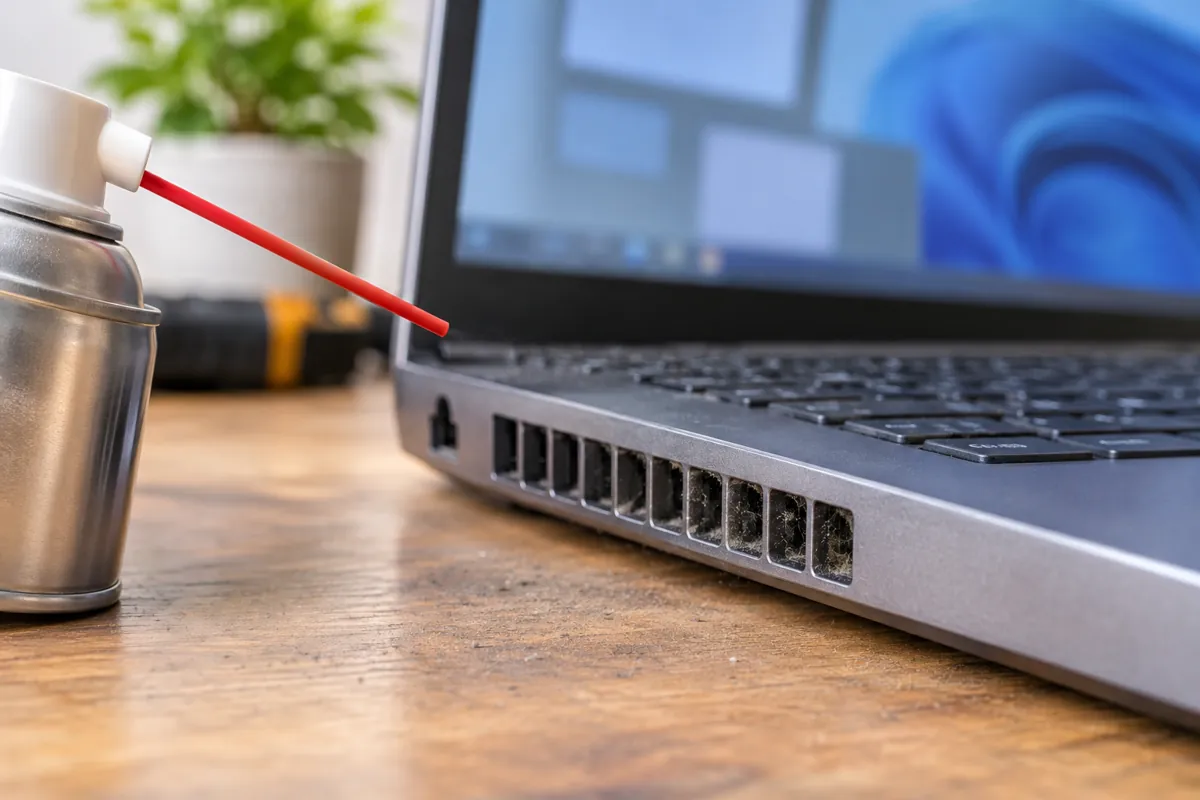
Processors protect themselves, and once internal temperatures climb past a safe threshold, the chip reduces its own clock speed, sometimes dramatically, to avoid damage. Your laptop is not broken in this case, it is deliberately running slower on purpose. The usual causes are dust blocking the vents, a fan that is failing or seized, dried thermal compound between the CPU and heatsink, and soft surfaces like beds or cushions smothering the intake.
Practical steps: use the laptop on a hard, flat surface, check that the vents are not blocked, and listen for the fan, because if it stays silent under heavy load, that is suspicious on its own. Compressed air can clear external dust, but internal cleaning on most laptops requires disassembly, which is a job for a technician if you are not confident doing it yourself. You can monitor temperatures with utilities like HWMonitor or HWiNFO on Windows, or something like Macs Fan Control on macOS, and if temperatures spike quickly under light load and stay high, that is your answer. Skip the overclocking guides and “performance booster” tools you will find online, because on a thermally limited laptop, those tools make things worse, not better.
Storage Health and Failing Drives
A failing drive does not always fail loudly; sometimes it just gets slower, retrying reads, remapping bad sectors, struggling to find data that used to come back instantly. Warning signs worth taking seriously include SMART warnings from your system, unusual clicking or grinding from a mechanical drive, corrupted files, folders that disappear, frequent crashes, and file operations that take far longer than they reasonably should.
If you see any of these, stop optimizing and back up your data right now, because performance is no longer the real issue. A drive that is dying will take your files down with it, so replace the drive rather than trying to tune your way around it.
SSD vs. HDD: The Upgrade That Matters Most
If your laptop still has a mechanical hard disk drive, this is the single biggest improvement available to you, full stop. An SSD has no moving parts, so boot times, application launches, and file operations all speed up dramatically, and no software tweak comes close to matching that.
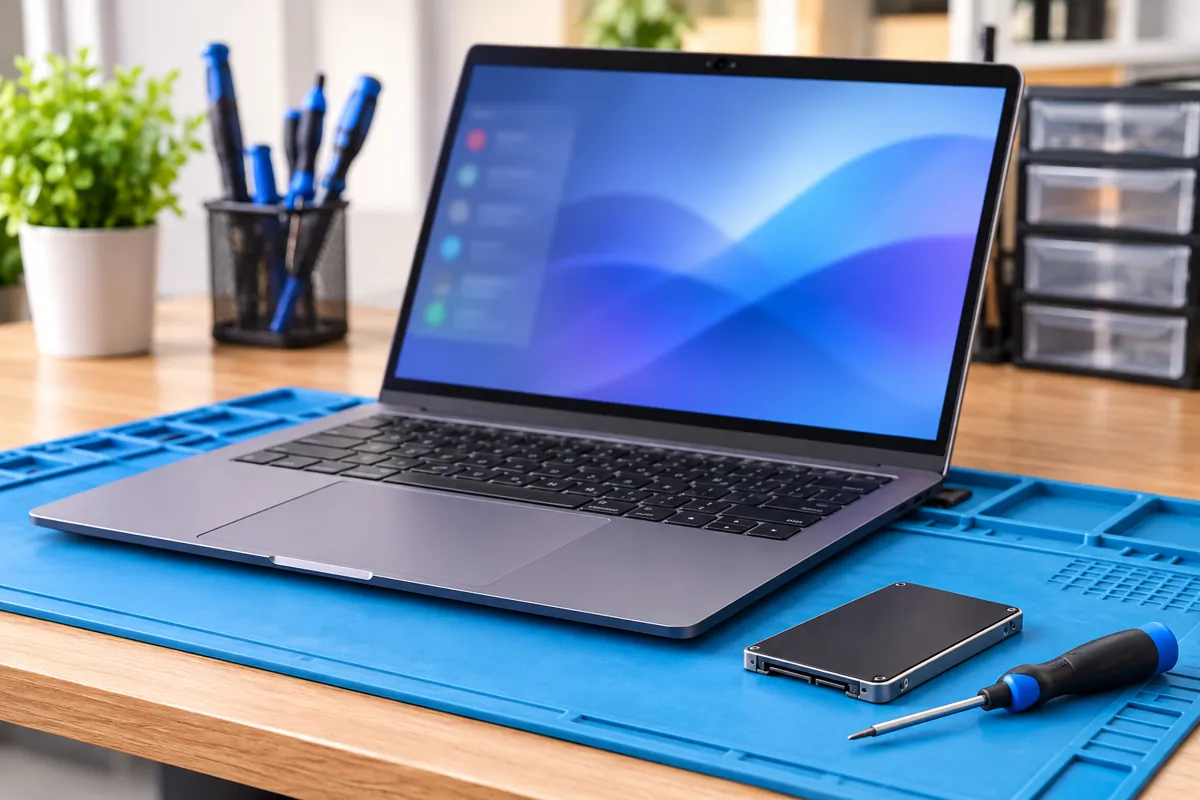
A few practical considerations before you buy. Check compatibility first, whether your laptop takes a 2.5-inch SATA drive, an M.2 SATA drive, or an M.2 NVMe drive, since your model’s manual or the manufacturer’s support site will tell you exactly which one. Then think about data migration: you can clone the old drive onto the new one with tools like Macrium Reflect or Samsung’s Data Migration utility, which comes bundled with Samsung SSDs, or install fresh and restore from a backup. Back up first, always, before you clone, before you open the case, before anything else.
Here is the honest limitation, though: an SSD will not rescue a laptop with a genuinely outdated processor or too little RAM. It removes the storage bottleneck. It does not invent performance that was never there to begin with.
Power Modes and Battery Health
If your laptop is slow only on battery, you have already found the cause, because battery-saver and “quiet” power modes deliberately cap processor performance to stretch runtime. Plug in and compare the difference yourself.
A degraded battery can cause stranger problems too, since some laptops reduce performance when the battery cannot deliver enough power on its own, and a failing charger may prevent the system from ever reaching full speed. If your laptop behaves differently plugged in versus unplugged, check battery health in your manufacturer’s diagnostic tool.
Drivers, Updates, and System Repair
Outdated drivers can cause genuine slowdowns, particularly graphics, chipset, storage, and Wi-Fi drivers, and this is also, unfortunately, the area where people cause the most damage trying to fix it. What you should do: install updates through Windows Update or macOS Software Update, then check your laptop manufacturer’s support page for model-specific drivers and BIOS or UEFI updates, with graphics drivers coming from Intel, AMD, or NVIDIA directly rather than a third party.
What you should not do is install generic “driver updater” utilities, since they frequently install the wrong package, bundle in unwanted software, and sometimes break drivers that were working fine. The same goes for registry cleaners and “RAM booster” apps, which promise optimization and deliver risk instead. If a BIOS update is available, follow the manufacturer’s instructions exactly and never interrupt the process partway through, because a failed BIOS flash can leave the machine unusable.
For persistent oddities, two diagnostic tools are worth knowing by name. Windows’ System File Checker, run as sfc /scannow from an elevated command prompt, repairs corrupted system files, while Safe Mode or a clean boot starts Windows with minimal drivers and services, and if the laptop runs fast in Safe Mode, third-party software is your cause.
When to Repair and When to Replace a Slow Laptop
There comes a point where troubleshooting stops being worth your time, and here is a rough framework for that decision, not a formula. It is worth repairing when the laptop is under four years old, has an upgradeable drive or RAM, and performance is the only real issue, since an SSD plus a memory bump can add years of usable life for relatively little money.
It is worth replacing when the battery, display, and storage all need work at once, when the operating system no longer receives security updates, when key components are soldered in and inadequate for what you need, or when the repair quote creeps close to the cost of a suitable new machine. Also weigh what you actually do with the thing: if your workload is email, documents, and browsing, an older laptop with an SSD and enough RAM is genuinely fine, but if you are editing video or running virtual machines, no amount of tuning will make a low-power processor keep up with that.
I do not think there is a clean answer here, honestly, and anyone telling you otherwise is probably selling you something, because cost, age, and workload all pull in different directions at once.
Frequently Asked Questions
Why is my laptop slow? Usually a combination of factors rather than one single cause: too many startup programs, low free storage, insufficient RAM, background processes, malware, overheating, or aging storage, which is exactly why a step-by-step approach beats chasing a single “fix.”
How can I tell whether the CPU, RAM, disk, or internet is causing the slowdown? Reproduce the problem while watching Task Manager on Windows or Activity Monitor on macOS, and whichever resource stays pinned near maximum is your bottleneck. If local files open fine but websites and video calls lag, the culprit is your network, not your laptop.
Should I defrag my hard drive? Only if you have a mechanical HDD. Defragmentation rearranges scattered file fragments so the drive head travels less, but SSDs do not fragment the same way, so running a traditional defragmenter on one accomplishes nothing; let the operating system handle SSD maintenance through its built-in optimization.
Does low storage make a laptop slow? Yes, because when the system drive is nearly full, there is less room for temporary files, caches, update staging, and virtual memory, and keeping a reasonable buffer of free space tends to keep performance steadier.
Can too many startup programs slow down a laptop? Yes, particularly at boot, since they compete for CPU, RAM, and disk access during login. Disabling the unnecessary ones shortens startup, though it will not touch slowness that persists all day long.
Does adding RAM make a laptop faster? It helps when memory pressure and swapping are the actual bottleneck, but it will not help if the real issue is a failing drive, overheating, malware, or a weak processor, so check whether your model’s RAM is even upgradeable before you spend anything on this.
Can overheating cause a laptop to slow down? Yes, since processors reduce clock speed as temperatures rise. Check vents, fan behavior, and where you are placing the laptop, because persistent overheating may need internal cleaning or professional service.
Why is my laptop slow only when running on battery? Battery-saver and quiet power modes limit processor performance on purpose, so compare performance while plugged in and check your power settings and battery health.
Should I update drivers or BIOS to fix a slow laptop? Install the relevant updates from Windows Update, macOS Software Update, and your laptop manufacturer’s support page, avoid generic driver-updater programs, and never interrupt a BIOS update once it starts.
Can too many browser tabs or extensions slow down the whole laptop? Yes. Test in a private window with extensions disabled, then re-enable them in batches, since browser task managers will show you exactly which tabs and extensions are eating memory.
Do antivirus programs slow laptops down? Real-time scanning can create temporary load during large file operations, but that is not a reason to remove your protection; check whether slowdowns line up with scans, and never run two real-time antivirus products at the same time.
Will a factory reset always make a laptop fast again? No. It removes software clutter and corrupted configuration, but it will not repair failing storage, inadequate cooling, or aging hardware underneath it, so back up before you reset, every time.
How do I speed up an old laptop that cannot be upgraded? Reduce background software, replace an HDD if the machine supports it, keep cooling paths clear, and run a lighter workload overall, and if none of that helps, compare the repair cost against replacement honestly.
When should I stop troubleshooting and replace the laptop? When the battery, display, motherboard, and storage all need attention at once, when the operating system is unsupported, or when the repair cost approaches the price of a suitable replacement.
Pick Your Symptom, Then Fix It
Most slow laptops are not dying, they are bottlenecked, and that bottleneck is identifiable if you look before you start tweaking settings at random. Start by naming your symptom, then measure with Task Manager or Activity Monitor while the problem is actually happening in front of you, and restart, trim startup apps, free up storage, and scan for malware before anything more drastic. If none of that moves the needle, look at heat, drive health, and power settings next, and if you are still running a mechanical hard drive, an SSD swap is the one upgrade that changes how the whole machine feels.
The one thing I would ask you to do before any of it is back up your files, because a slow drive can be a failing drive, and no performance tip is worth losing your data over.
Pick your symptom, run the measurement, fix the actual cause, then check whether the laptop still feels slow. You might be surprised how much life was left in it the whole time.