How to Back Up Your Computer: A Simple 3-2-1 Plan
Learn what a real backup is, how the 3-2-1 rule works, and how to set up automatic local and cloud backups for Windows and Mac that run on their own.
Hard drives do not send a warning before they die, which is the part people never quite internalize until it happens to them. A file is there one morning and gone by the afternoon, with no error message and no second chance to grab it. I think that single fact explains almost everything people get wrong about backups: they treat the whole subject as a chore for later, right up until later is no longer an option.
Most advice on how to back up your computer is either too vague to act on or so complicated that nobody ever finishes setting it up, which is its own kind of failure. So here is the version I would actually give a friend, covering what a backup really is, which methods are worth your time, and how to build a system that keeps running long after you stop thinking about it.
What It Means to Back Up Your Computer
Backing up means making a copy of your data and keeping that copy somewhere else, full stop, no asterisks attached.
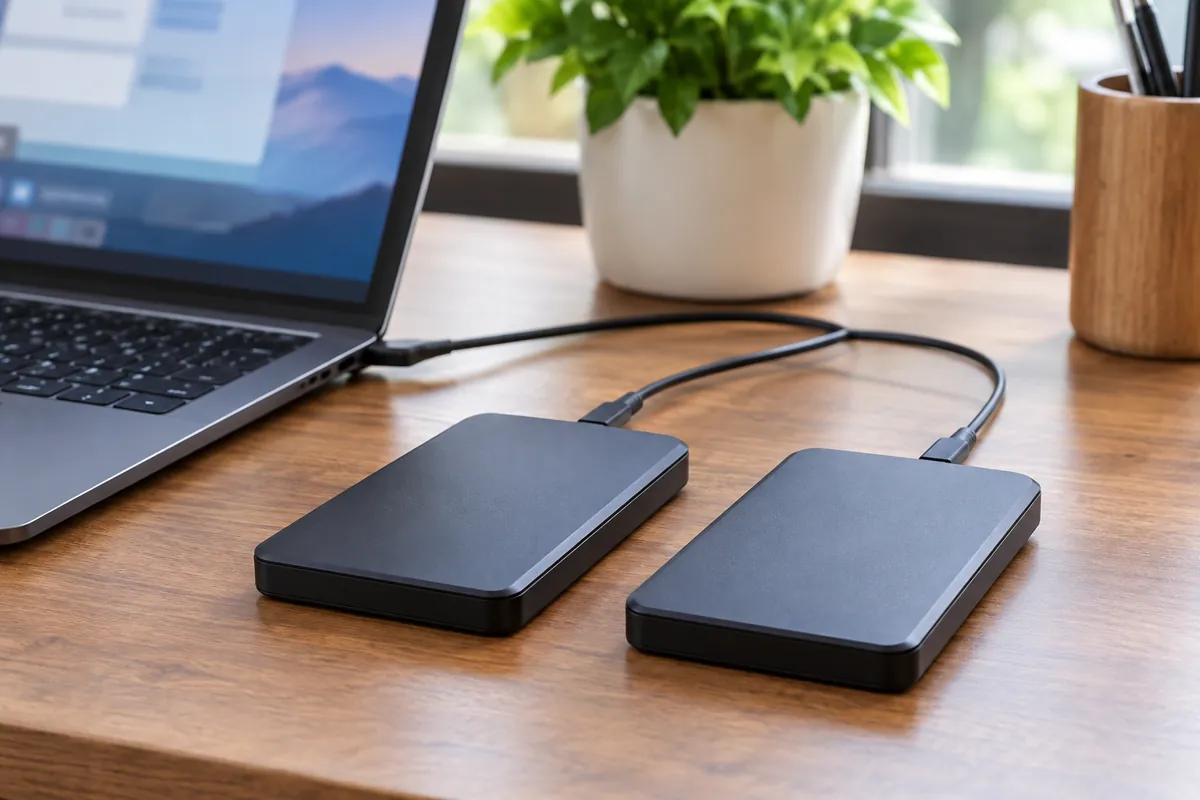
The word doing all the work in that sentence is copy. If the only version of a file lives on your laptop, you are not backed up. And if you moved a file to an external drive and deleted the original, you are still not backed up, because you just relocated which single location holds your only copy. That is not the same thing at all, even though it feels like progress.
This confuses more people than you would expect, and the clearest example is photos. Someone “backs up” their pictures by dragging them onto a USB stick and clearing space on their phone. That is not a backup so much as a transfer with extra steps, and one with a much higher chance of loss. USB sticks get lost, left in pockets, and run through the wash on a regular basis.
The purpose of a backup is recovery. When your drive dies, when ransomware locks your files, when coffee finds your keyboard at the worst possible moment, you reach for the copy and keep working, because the copy was always the point of the exercise.
So how many copies do you actually need? Most IT professionals point to the 3-2-1 rule, which calls for three copies of your data, on two different types of storage media, with one copy kept off-site, and the U.S. Cybersecurity and Infrastructure Security Agency, known as CISA, defines it in exactly those terms. Your original files count as one copy, an external drive at home is the second, and a cloud backup is the third.
There is a stricter version worth knowing, called 3-2-1-1-0, which adds one offline or immutable copy and zero unverified backup errors. That last zero is doing a lot of quiet work, because it means you have actually tested a restore, not just assumed your software would come through when asked.
Backup Versus Sync: The Mix-Up That Costs People Their Files
If you already use OneDrive, iCloud Drive, Dropbox, or Google Drive, you might believe you are covered, and I would not bet on it.
Sync services mirror your files across devices, so change a document on your laptop and the change shows up on your phone within seconds. Delete a folder by accident and the deletion spreads everywhere just as fast, and if ransomware encrypts your Documents folder, the encrypted versions sync to every connected device before you have even noticed something is wrong.
That is the trouble with sync. It is excellent at keeping devices consistent and genuinely bad at preserving history, which means sync is not backup, no matter how comfortable it feels.
A real backup keeps versions, letting you reach back to how a file looked last Tuesday, or three weeks ago, before you overwrote the wrong paragraph or before malware scrambled everything in sight. Cloud backup software typically holds onto previous versions of files for a set period, and that window is what gives you a usable recovery point after an attack.
What does this mean in practice? If you pay for Google Drive or iCloud purely to move files between devices, keep doing exactly that. But do not count it as your backup, because you still need a copy that is not continuously mirrored, whether that is an external drive you disconnect or a dedicated backup service that keeps version history going.
The trade-off is real, and I will not pretend otherwise. Sync services are cheap, already installed, and require no setup at all, while a proper backup costs either money, in the form of a cloud subscription, or discipline, in the form of plugging in a drive on schedule. That is the honest reason most people skip it.
Types of Backups, and When Each One Earns Its Keep
There are three main approaches here, and they solve different problems, so picking the wrong one for your situation is how you end up with a backup that cannot restore what you actually need when the moment arrives.
File-Level Backups
This copies your documents, photos, videos, and other personal files, but not the operating system or your installed programs, and for most households, it is the right call.
Windows File History does this automatically to an external drive, and macOS Time Machine works the same way, which is one of the better reasons to own a Mac, in my opinion. Both tools run quietly in the background after a one-time setup and keep incremental versions, saving only what changed since the last run.
The downside is that if your drive fails completely, you will need to reinstall Windows or macOS from scratch, reinstall every application one by one, and then restore your files, which eats an entire afternoon. But your data survives, and that is the part that actually matters most.
System Image Backups
A disk image is a snapshot of your entire drive: files, programs, settings, drivers, the operating system, all of it bundled together, and restoring it to a new drive brings your computer back exactly as it was.
This is worth doing only if rebuilding from zero is something you genuinely cannot tolerate, because images take a long time to create, they are large. And they do not let you easily pull out one old version of a single file. For a home user with a laptop and a few hundred gigabytes of photos, I would call an image overkill. But for someone running a small business with configured software and licensed tools, it can save a full day of reinstalling everything by hand.
On Windows, third-party imaging tools handle this job, while on a Mac, Disk Utility can build images, though Time Machine paired with a clean install covers most people just fine.
Full, Incremental, and Differential
These terms describe how much gets copied each time, not how often the backup runs.
- Full backup: everything, every time. Simple, slow, and storage-hungry.
- Incremental backup: only what changed since the last backup of any kind, fast and efficient on space, though restoring means reconstructing a chain of smaller backups.
- Differential backup: only what changed since the last full backup, slower to create than incremental but faster to restore from.
For a home setup, you do not need to think in these terms at all, since modern software handles it for you. But knowing the vocabulary helps when you are staring at a settings screen wondering why your first backup is taking three days to finish.
It will take that long, by the way, because the first backup is always the slowest one you will ever run, and depending on how much data you have, it can stretch across several days. Every backup after that moves much faster, since only the changed files get uploaded.
Choosing Your Storage: Local, Cloud, or Both
You have four realistic options for where your copies actually live, and here is how I would weigh them, including what each one costs you in money, time, or risk.
External Hard Drives
This is the fastest and cheapest way to back up your computer at home, since a desktop drive plugs into USB, holds a terabyte or more, and costs less than a year of most cloud subscriptions.
A few practical rules apply here. Buy a drive two to three times larger than the drive you are backing up, because incremental backups still accumulate. And a drive that fills up silently is worse than no backup at all, since you believe you are protected when you are not. Do not worry about speed, because a slow 5,400-rpm drive is perfectly fine when the software runs quietly in the background anyway. I would stick with established brands, not because they never fail, since any drive can fail early, including theirs, but because a solid warranty process makes replacement far less painful when it does.
Here is the catch: an external drive sitting beside your computer is vulnerable to the same fire, flood, theft, or power surge that takes out the computer itself. And if it stays plugged in, ransomware can encrypt it right alongside your originals while malware actively hunts down and destroys any backup it can reach.
So if you use a local drive, unplug it once the backup finishes. That one habit converts a vulnerable copy into an offline one.
Cloud Backup Services
This is your off-site copy, the one that survives a house fire. Services such as IDrive install a small application that runs continuously in the background, uploading changed files and keeping version history as it goes.
Setup for most of these services is simple, since you create an account, download the installer, run it, and backups begin almost immediately. Many of them default to backing up your Documents folder, user folder, and photos using an opt-out model, meaning everything important is already selected and you exclude what you do not want included. That is a bit counterintuitive, and I would personally prefer an opt-in list, but it does mean nothing important gets left out by accident.
The trade-off is cost and bandwidth, because some unlimited plans are priced for a single computer. So if you are backing up several machines, look for a service built to handle multiple devices without multiplying the bill, and if your internet provider caps your data, that first giant upload can genuinely hurt.
Cloud Storage and Sync Services
Google Drive, Dropbox, OneDrive, and iCloud are cheap, already on your machine, and not a backup, for all the reasons already covered above. Prices vary by plan and change often, so check each provider’s current pricing page before committing to anything, because you are paying for sync here, not version history or disaster recovery.
There is a privacy angle too, since most sync services hold the encryption keys themselves, which means the provider can technically access your files. If you are storing tax returns or medical records, that matters more than people assume, and dedicated backup services typically encrypt on your end instead, so the provider cannot decrypt what it stores. The same principle shows up under the name zero-knowledge encryption, where you hold the key and the provider holds only unreadable ciphertext.
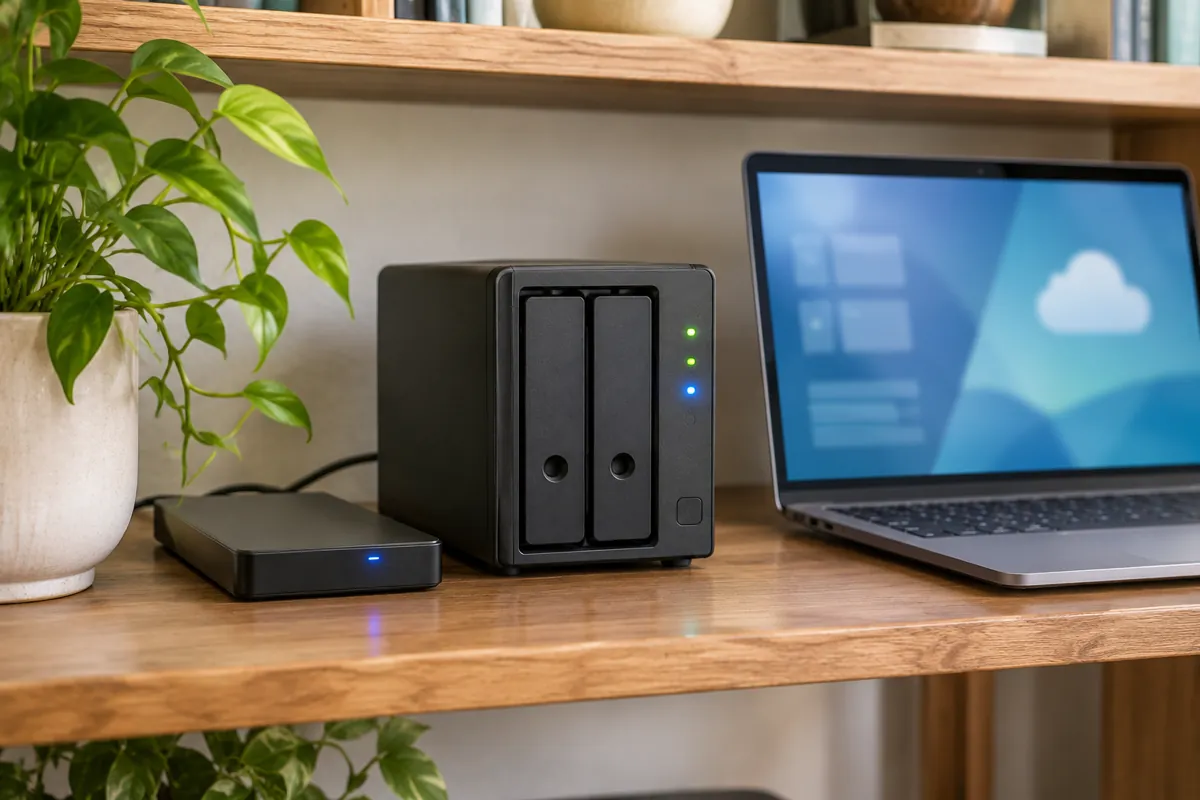
Network-Attached Storage (NAS)
A NAS connects to your router and backs up every computer in the house to one shared place, which is great for a family running four laptops. It is more complicated to set up, more expensive upfront, and still vulnerable to local disaster unless you also keep an off-site copy somewhere. I would skip it if you only have one computer to protect.
How to Back Up Your Computer: A Walkthrough for Windows and Mac
Enough theory. Here is what to actually do this weekend.
On Windows
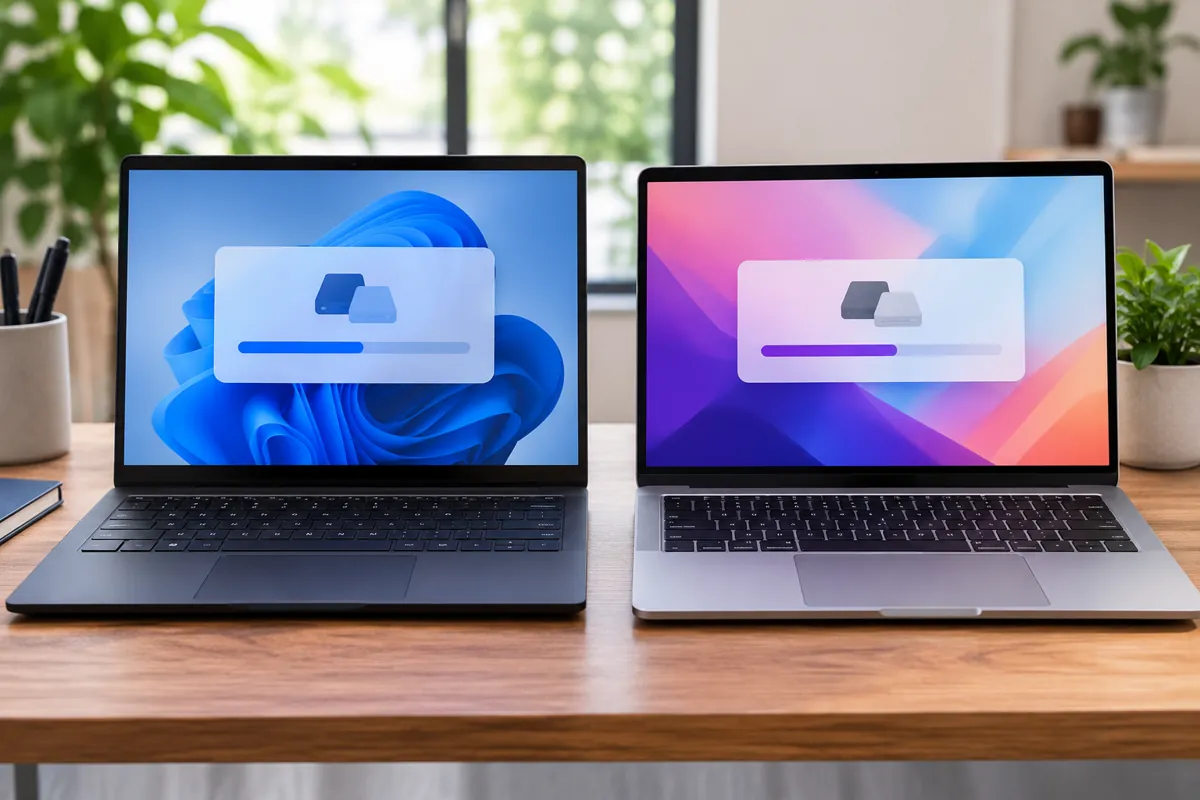
Open Settings, search for File History, and turn it on, then point it at your external drive. File History will back up your Libraries, Desktop, Contacts, and Favorites automatically, keeping versions you can roll back to later, and while it is not glamorous, it works, and it costs nothing.
Built-in cloud sync can be convenient, but it is not a complete recovery plan on its own, because it stores much of your data online without being designed to fully restore your system after a drive failure.
If you want Time Machine-level simplicity on Windows, you will need third-party software for that, since some tools offer scheduled images, incremental backups, and bootable recovery media, though free editions change over time. So check what is currently on offer before you lean on one.
On Mac
Open System Settings, go to General, then Time Machine, and add your external drive as the destination. That is the entire process. Time Machine runs hourly, keeps daily and weekly versions, and will restore a single file or your entire system, whichever you need at the time.
If you want an off-site copy as well, add a cloud backup service alongside Time Machine, since the two do not conflict with each other in any way.
On Linux
Déjà Dup offers a straightforward graphical front end to duplicity for file-level backups, while Borg handles deduplicated, encrypted archives if you are comfortable on the command line. Both are solid tools, though neither is quite as turnkey as Time Machine.
One Thing People Forget
Create a bootable recovery drive before you need one, not after, because if your internal drive will not even start, you cannot run the restore software that lives on it. Windows has a recovery drive utility built in, and macOS can build one from a USB installer. Make it now, label it clearly, and put it somewhere you will actually remember.
What to Back Up, and What to Skip
Back up your documents, photos, videos, email archives, browser bookmarks, password manager data, application license keys, and any configuration files you have customized over time.
A usable recovery may also require encryption keys, certificates, startup files, permissions, and configuration data. For a home user, the practical version of that advice is simple: if you use full-disk encryption, make sure your recovery key lives somewhere that is not the encrypted disk itself.
Skip temporary files, browser caches, operating system downloads, and anything easily re-downloaded from a streaming service, since there is no reason on earth to pay to store your Netflix cache.
One warning worth repeating: do not exclude application databases or locally stored email without checking first, because some desktop email clients keep everything in a single database file that looks like junk and absolutely is not.
Testing Your Backup (The Step Everyone Skips)
A backup you have never restored from is a guess dressed up as a plan.

Here is the bare minimum. Once a quarter, pick a file you know exists in your backup, delete it from your computer, and restore it, then watch it come back. That takes five minutes and tells you more than any dashboard notification ever will.
Being able to roll back at least seven days is a reasonable baseline for a household, since ransomware and accidental overwrites often go unnoticed for days at a stretch.
If you want to go further, run a full test restore to a spare drive or a virtual machine. It is tedious work, and it is also the only way to discover that your backup software has been quietly failing for six months without telling anyone.
Check your notifications too, because a scheduled backup is not the same thing as a successful one. Look at the logs, confirm the last run actually finished, and verify your drive is not full.
Protecting the Backup Itself
Your backup needs its own security, because a compromised backup protects absolutely nothing.
Turn on multi-factor authentication for your cloud backup account, and use a password that is not reused anywhere else. Store your encryption key or recovery code somewhere separate from the backup itself, since a printed copy in a fireproof box works well and beats a note saved in the same account you might get locked out of.
If you are recovering from ransomware, isolate the infected computer first, and do not reconnect your backup drive to a machine that might still be compromised. Identify a clean restore point, scan the restored files before trusting them, and only then reconnect anything else.
There is no tidy answer for the person who discovers the infection three weeks late and has no version history old enough to escape it. That is exactly why retention settings matter and why checking them now beats discovering the gap later.
Frequently Asked Questions
Is cloud storage the same as a backup? Usually not. Sync services mirror changes across devices, including deletions and encrypted files, while a true backup preserves historical versions and supports recovery after deletion, device failure, or malware.
How often should I back up my computer? Match it to how much work you can afford to lose. Daily suits most people fine, but if you are editing a manuscript or running a business from your laptop, hourly or continuous protection serves you better.
What is the 3-2-1 backup rule? Three copies of your data, on two different storage types, with one kept off-site, and CISA endorses it as a baseline standard.
Should my backup drive stay plugged in? No, not continuously, if it holds your only local copy, since unplugging it once the backup completes cuts down on ransomware and surge exposure.
What is the difference between full, incremental, and differential backups? A full backup copies everything, an incremental backup copies changes since the last backup of any kind, and a differential backup copies changes since the last full backup.
Do I need a disk image? Only if rebuilding your computer from scratch would cost you more time and storage than the image requires in the first place, and most home users do not need one.
Can backups protect me from ransomware? They can help you recover, but only if at least one copy is offline or immutable, retains older versions, and has actually been tested.
How do I know my backup worked? Check the logs, then restore a file and confirm it opens correctly, since a backup that has never been restored is still unverified, no matter how confident the software sounds.
How long should I keep backups? Long enough to cover accidental deletion, delayed malware discovery, and any legal or tax requirements you are subject to, and keep irreplaceable photos and financial records longer than everything else.
Can I back up a computer that is already infected? Do not assume its files are clean. Disconnect it, investigate properly, and restore only from a recovery point you know predates the infection.
What should I do if my backup drive fails? Replace it, then immediately test your remaining copies, because no one external drive should ever be your entire strategy, no matter how reliable it has seemed so far.
The Plan That Actually Works
The best backup system is the one that runs without you thinking about it, because if you have to remember to do it, you will not. And the day you finally need it will be the day you did not.
Start with two things this week: plug in an external drive and turn on File History or Time Machine, then sign up for one cloud backup service and let it run quietly in the background. That is the 3-2-1 plan, with the discipline problem engineered out of it, so unplug the drive once it finishes and test a restore in three months, watching the file actually come back.
A copy sitting in one place is not a backup. It is just a file waiting for its turn to disappear.