How to Create a Strong Password You Can Actually Remember
What makes a password strong in practice: length, passphrases, password managers and two-factor authentication, with simple steps to secure your accounts.

Most password advice online is outdated or flat wrong. Telling someone to mix letters, numbers, and symbols is exactly how the world ended up with Password1! and Summer2025!, two patterns that cracking tools memorized years ago. Here is the uncomfortable truth: strength has almost nothing to do with how clever a password looks, and almost everything to do with three unglamorous properties, length, randomness, and uniqueness. Get those three right and the rest of the problem mostly solves itself; get them wrong, and no amount of a dollar sign standing in for an “s” will save you.
This piece explains how to create a strong password that survives modern cracking tools, why old habits quietly work against you, and what to do once remembering dozens of these things becomes impossible. It is not as hard as it sounds. Most of the fix is a change in habit, not a change in memory.
The Three Ingredients Needed to Create a Strong Password
Forget the complexity checklist from a decade ago. Modern guidance is simpler, and honestly more useful, because it rests on three properties instead of a dozen arbitrary rules. Length is the big one: every character added multiplies the number of combinations an attacker has to work through, so a 16-character password is not twice as hard to crack as an 8-character one. It is exponentially harder. That is exactly why password managers default to long random strings instead of short clever ones.
Randomness matters on its own terms, separate from length. A password built from predictable pieces, dictionary words in grammatical order, keyboard walks like qwerty or asdf, dates, names, stays weak no matter how long you stretch it. Cracking tools do not guess character by character. They run wordlists, common substitutions, and known patterns first, and most human-made passwords fall into one of those buckets without the person ever realizing it.
Uniqueness is the property people skip, and it may be the most important of the three in practice. A password can be long and genuinely random and still be a liability if it shows up on ten different accounts, because once one of those services gets breached, attackers feed the leaked email-and-password pair into automated tools and try it everywhere else. That has a name: credential stuffing. It is common, and reuse remains one of the easiest ways attackers get into accounts that were never theirs.
So a strong password is long, random, and lives in exactly one place. That is the whole game. If you already run a password manager with generated passwords on every account, skip ahead to the section on multi-factor authentication. Everyone else, keep reading.
Length vs. Complexity: Which One Actually Wins
Length wins, and not by a little. Cracking tools work by trying combinations; each extra character multiplies the search space, while complexity rules, requiring a capital letter or a symbol, only widen the character set somewhat. Adding length does more work, because every additional character multiplies the total possibilities rather than simply adding to them.

That is why correct-horse-battery-staple, four random words with no symbols and no capitals, beats P@ssw0rd! every time. The first is long and unpredictable. The second is a dictionary word with the two most common substitutions applied, and cracking software already has p@ssw0rd sitting in its wordlist before you finish typing it. To be fair to the rule-makers, complexity requirements exist because organizations learned, correctly, not to trust users to pick long passwords on their own. Left alone, people choose Fluffy2019 and move on with their day.
But there is a trade-off worth sitting with. Forced complexity pushes people toward predictable patterns anyway: a capital at the start, a symbol at the end, a number that happens to be a year. Crackers know this, and they build rule sets that generate exactly those patterns before trying anything else.
What to do instead:
- For accounts you will never memorize, which is most of them, let a password manager generate a 16-plus character random string and stop thinking about it.
- For the handful of passwords you actually have to remember, your manager’s master password, your device PIN, use a passphrase of four to six genuinely unrelated words, with a symbol or two tossed in if you like the look of it.
Here is the catch with passphrases: people are bad at picking random words by hand. “My beautiful red house” feels random but fails the test, because the words relate to each other in a way that makes the phrase guessable. If you are building a passphrase in your head, you are probably not as random as you think. That is exactly why Diceware-style word lists exist; human-generated randomness is unreliable even when the human is trying hard.
How Attackers Actually Crack a Password
Understanding the attack tells you which defense matters. There are five worth knowing, and they do not all call for the same response. Online guessing means someone tries passwords directly against a live login page, but most sites rate-limit this, locking an account after a handful of failed attempts. It is the least effective method in practice, and a moderately strong password handles it fine.

Credential stuffing is more dangerous. Attackers take username-password pairs leaked from one breach and test them against other services, which is precisely why reuse is fatal. Your password could be a 30-character random string and it still will not help if it is the same one you used on a site that got breached last year. Phishing sidesteps the whole problem a different way: someone tricks you into typing your password into a fake login page, and length becomes irrelevant. A 64-character password handed to a phishing site is just a 64-character password sitting in someone else’s database now.
Malware and infostealers work on the same principle, capturing what you type or reading what your browser has saved; length does not help there either, device security does. Offline cracking is where length and randomness matter most of all. A service gets breached, attackers walk away with the encrypted password database, and they crack it at leisure with no rate limit, making billions of guesses per second on modern hardware. This is the one scenario where a 16-character random password is genuinely, dramatically different from an 8-character one.
Notice the pattern. Length and randomness defend against offline cracking. Uniqueness defends against credential stuffing. Nothing short of phishing-resistant authentication defends against phishing itself. If you are only doing one of these things, there is still a door left open somewhere.
Step-by-Step: How to Create a Strong Password
Pick a path based on whether you actually need to remember the password, because the two situations call for different tools entirely.
Method 1: Password Manager Generated (Best for Most Accounts)
Open the password manager, hit generate, set the length to at least 16 characters, include all character types, and save it. That is the whole process, and you will never type it since autofill handles that part. The trade-off is dependency: if the service goes down, or you are on an unfamiliar device, you may not be able to log in, which is exactly why backup codes and recovery options matter, a point covered further down.
Method 2: Memorable Passphrase (For the Passwords You Must Remember)
This applies to your manager’s master password, your device login, and possibly your email if you insist on memorizing it directly rather than storing it. Pick four to six words with no logical connection between them. Not “dog cat bird fish,” since that is a category and crackers try categories, but something like mango-trolley-glacier-violin, which works precisely because the words have nothing to do with each other. Join them with hyphens, periods, or whatever punctuation you like.
A hand-built passphrase is weaker than a manager-generated random string of the same length, to be clear about the trade. You are giving up some security for memorability, and that is a reasonable trade as long as the passphrase is genuinely random and unique to one account alone.
Method 3: The Sentence Method (A Middle Ground)
Take a sentence only you would construct and reduce it to initials, numbers, and punctuation. “My first apartment in Denver cost $850 a month in 2011” becomes something like MfaiDc$850ami2011, seventeen characters, mixed types, nothing sitting in any wordlist. The downside is pattern reuse: if the same sentence structure gets applied to every account, a determined attacker who learns one password can guess the rest. This method belongs on one account, not all of them.
What to Avoid Entirely
- Sequential strings like
12345orabcde - Repeated characters like
aaaaaor0000 - Your username, in whole or in part
- Personal details: birthdays, pet names, hometowns, the street you grew up on
- Keyboard paths like
qwerty,asdf, or1qaz2wsx - The word
passworditself, which people genuinely still use
Common leetspeak substitutions deserve a mention too. p4$$w0rd is not meaningfully harder to crack than password, because cracking tools try those substitutions automatically as a matter of course.
Password Managers: The Practical Answer
Here is the math problem nobody escapes: the average person juggles dozens of accounts, and the guidance above calls for a unique, long, random password on each one. That is not a memory task. It is a storage task. A password manager stores everything in an encrypted vault, so you remember one strong master password and the manager handles the rest, generating passwords, filling them in automatically, syncing across devices, and often flagging credentials that turned up in a known breach.
Worth knowing: 1Password, Dashlane, Bitwarden (open source, with a free tier), Keeper, and NordPass all handle the core job well enough. If keeping data entirely under your own control matters to you, KeePassXC stores the vault locally with no cloud sync, which is more private but puts every backup squarely on you.
The honest downside is concentration of risk. An attacker who gets your master password gets everything behind it, which is why the master password needs to be your strongest credential, MFA on the manager account is not optional, and recovery codes belong somewhere other than your email inbox. There is a second downside worth naming: browser-based password storage is often good enough for casual use, and it is free. Dedicated managers offer better cross-platform control, sharing features, breach monitoring, and audit tools, but switching from reused passwords like Fluffy2019 to even a browser’s built-in manager is still a massive improvement. Do not let the perfect option block a better one.
Multi-Factor Authentication and Passkeys
A strong password is one layer, and a good one, but it fails against phishing, and it fails the moment a service you use gets breached regardless of how carefully you chose it. Multi-factor authentication adds a second requirement at login, so even with your password in hand, an attacker still needs the second factor. These rank roughly as follows in strength.
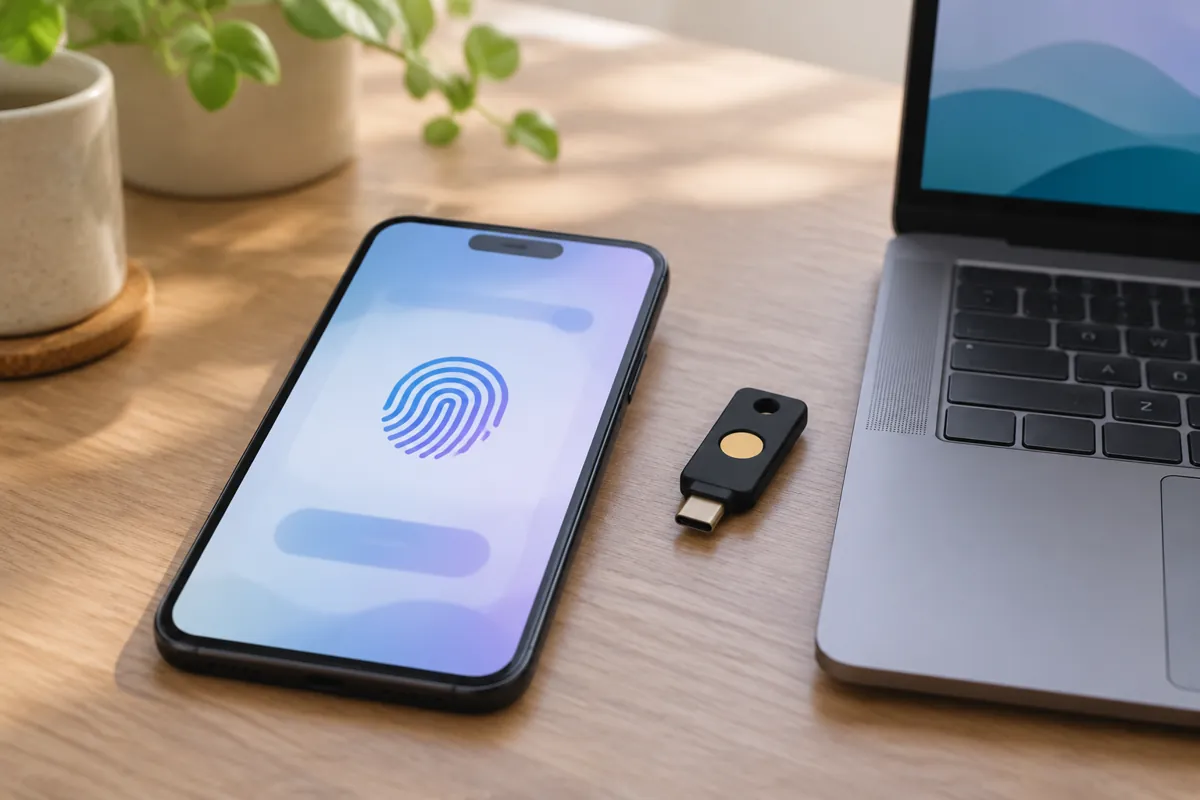
- Passkeys and hardware security keys, such as a YubiKey, are phishing-resistant because the credential is cryptographically bound to the real website, so a fake login page simply cannot use it.
- Authenticator apps like Google Authenticator, Authy, or 1Password’s built-in code generator are strong, though codes can still be phished if you are tricked into reading one out loud to someone.
- SMS codes are better than nothing, but vulnerable to SIM-swap attacks and interception. Use SMS only if it is the sole option offered, never as a first choice.
Passkeys deserve their own mention beyond that list. A private key lives on your device instead of a password, unlocked by your fingerprint, face, or PIN, with nothing to memorize, nothing to phish, and nothing to reuse. Major services are increasingly offering them, and plenty of people find them easier than passwords simply because there is nothing left to type. The catch is that passkeys tie you to your devices, so losing the device means you need a working recovery path; syncing passkeys through a platform account, iCloud Keychain or Google Password Manager, solves the portability problem but shifts trust onto that account instead. Use passkeys wherever they are offered, but set up recovery before you need it, not after.
Securing Account Recovery (The Part Everyone Skips)
A flawless password is worthless if an attacker can reset it through a weak recovery channel instead. It is worth auditing a handful of things on your important accounts.
- Recovery email: if it is an old account you never check, that is a vulnerability waiting to be used, so make sure it is an account you actually control, protected with its own strong password and MFA.
- Backup codes: when you enable MFA, you get one-time recovery codes. These belong in your password manager, or printed and kept somewhere physically secure, never in an email draft and never in a plain text file on your desktop.
- Security questions: “What was your first pet’s name?” is answerable from a glance at your social media, so where a service allows it, enter a random string as the answer and store it like any other password.
- Trusted devices: review the list periodically and remove anything you do not recognize.
- Active sessions: most major services let you see where you are logged in and sign out remotely, and doing this after any suspected compromise is worth the two minutes it takes.
If your email account gets taken over, everything else falls with it, because password resets for every linked service route through that inbox. Treat email as your highest-value account. The same goes for your password manager.
When to Change a Password (And When Not To)
The old advice said change everything every 90 days. That guidance is gone, for good reason, because forced rotation pushes people toward minor variations, Summer2025! becomes Summer2025!!, which add no real security while creating a false sense of having done something useful.
Change a password when:
- The service notifies you of a breach
- You used it on a site that got breached, even if this particular account was not named
- You typed it into a phishing site or a page you were not sure about
- You see login activity you do not recognize
- You shared it with someone and no longer need to
- You discover you reused it somewhere else
Otherwise, leave it alone, because a long, unique, random password does not degrade with time. Why would it? Reputable breach-checking services let you search by email address to see whether your credentials have turned up in a known leak, though you should never type an actual password into an unfamiliar checker. Some legitimate services can check a password without ever seeing the full thing, using privacy-preserving hashed lookups that reveal only a small fragment of the hash.
Frequently Asked Questions
How long should a strong password be? For anything a password manager generates, 16 characters is a reasonable floor, and longer is better still. A passphrase meant to be memorized should use at least four to six unrelated words. There is no single number that guarantees safety, since length is one factor among three.
Is a 16-character password strong enough? Not on its own. A 16-character password that is reused, predictable, or typed into a phishing page is still a liability. Length protects against offline cracking; it does nothing against credential stuffing or phishing.
Should every password be different? Yes, without exception. Every account should get its own password, so a breach at one service cannot unlock anything else.
Are password managers safe? A reputable manager reduces reuse and generates strong credentials, solving the biggest practical problem most people have. The master password, MFA settings, recovery process, and device security all become critical afterward, because the vault is only as strong as the account protecting it.
Are passkeys safer than a password? They resist phishing and eliminate reuse, addressing two of the biggest attack vectors directly, though you still need secure devices, a working recovery path, and protection for whatever account syncs your passkeys.
Is SMS two-factor authentication good enough? It is far better than a password alone, and also the weakest common form of MFA, vulnerable to SIM-swap attacks and interception. Prefer an authenticator app, a hardware key, or a passkey where the service supports it.
What should I do if I entered my password on a phishing site? Change that password immediately, and change it anywhere it was reused. Revoke active sessions, reset MFA, confirm your recovery email and phone number have not been altered, and review recent account activity.
What is credential stuffing? Automated testing of username-password pairs stolen from one service against other services. Unique passwords are the direct defense against it.
Can I share a password safely? Better to avoid it where possible. If it is unavoidable, use a password manager’s controlled sharing feature rather than email, chat, or a spreadsheet, and rotate the credential once the need has passed.
How should I store backup codes? In your password manager, or as a printed copy kept somewhere physically secure. Never in an email draft, a screenshot, or an unencrypted note.
The Realistic Path Forward
Once the outdated rules get stripped away, the project stops being complicated. Make it long. Make it random. Make it unique to one account. Then add a second factor so a stolen password is not enough on its own to get in. For most people, the realistic path looks like this: install a password manager, generate a random 16-plus character password for every account, set the master password itself as a memorable multi-word passphrase, turn on MFA everywhere it is offered, and store backup codes somewhere other than the inbox.
Start with email and the password manager, since those two unlock everything else behind them. Then work outward: banking, cloud storage, social media, work accounts, over the following weeks. Nothing here needs fixing today. But every account converted to a unique, long password is one less door left unlocked for someone else to try.